
How to Create Custom Fields for Products in BigCommerce
April 28, 2026
By: Tiffany Hindman
Summary: Learn how to create custom fields for products in BigCommerce to store additional data, improve product pages, and support integrations with other systems. This step-by-step guide covers setup, use cases, and best practices.
How to Create Custom Fields for Products in BigCommerce
Custom fields in BigCommerce let you add extra product information that doesn't fit into the default fields. Whether you're displaying technical specs, internal data, or additional details for customers, custom fields give you flexibility without needing an app.
Here's exactly how to create and use them.
What Are Custom Fields in BigCommerce?
Custom fields are name-and-value pairs tied to individual products. The name is the label, the value is the content — simple as that. Unlike product options or variants, custom fields don't affect pricing, inventory, or anything structural. They just hold information.
BigCommerce covers the basics out of the box, but it doesn't account for every product attribute you might need. Custom fields are how you handle the rest — without restructuring your catalog or installing another app.
They're especially useful when:
- You need to surface extra details on your storefront
- You want to store data for internal use
- You're preparing data for exports, integrations, or automation
Common Use Cases for Custom Fields
Where custom fields really become valuable is in how you apply them. Here are the most practical and widely used scenarios:
Instead of cramming everything into the product description, you can create clean, structured fields like:
- Material: Aluminum
- Weight: 2.5 lbs
- Dimensions: 10" x 5" x 3"
- Country of Origin: USA
This makes your product pages easier to scan and improves consistency across your catalog.
For more complex products, custom fields can hold detailed attributes that matter to buyers:
- SKU extensions or manufacturer part numbers
- Compatibility information
- Compliance data (FDA, NSF, etc.)
- Batch or lot-related details
This is especially useful for manufacturers, distributors, and B2B sellers.
Not all custom fields need to be customer-facing. You can use them to store:
- Warehouse notes
- Packaging instructions
- Fulfillment flags
- Internal product classifications
Even if they're not displayed on the storefront, they can still be accessed via exports or APIs.
This is where custom fields become much more strategic. They're often used as:
- Mapping fields between BigCommerce and ERP systems
- Containers for external IDs (e.g., D365 product references)
- Flags to trigger automation (e.g., "requires special handling")
If you're connecting BigCommerce to systems like Microsoft Dynamics 365, custom fields can act as a bridge between platforms.
With a bit of theme customization, custom fields can power:
- Product spec tables
- Accordion sections (e.g., "Additional Information")
- Highlighted attributes on product pages
This gives you more control over how product data is presented—without hardcoding values into templates.
If you're exporting product data to Google Shopping, marketplaces, or internal reporting tools, custom fields let you include additional attributes that aren't part of the default export structure.
Why Not Just Use the Product Description?
You can — but it gets messy fast. Custom fields give you:
- Structure — consistent formatting across products
- Flexibility — easy to update without rewriting content
- Reusability — usable in themes, APIs, and integrations
In short, custom fields turn content into actual usable data rather than a wall of text.
Step-by-Step: Create Custom Fields
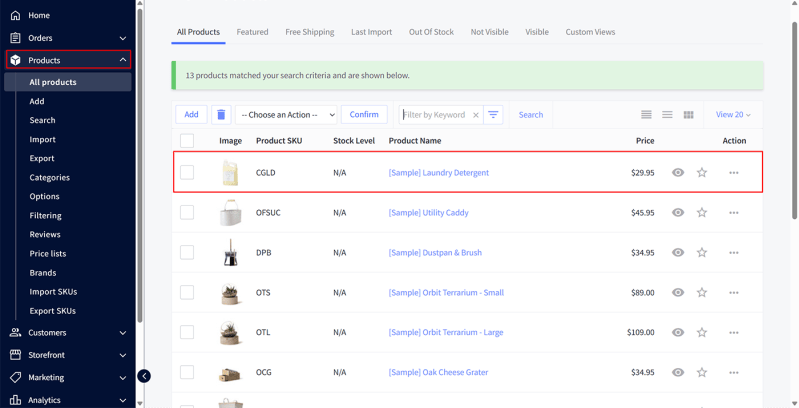
1. Go to Your Product Catalog
- Log in to your BigCommerce admin
- Click Products
- Click on the product you want to edit
2. Open the Custom Fields Section
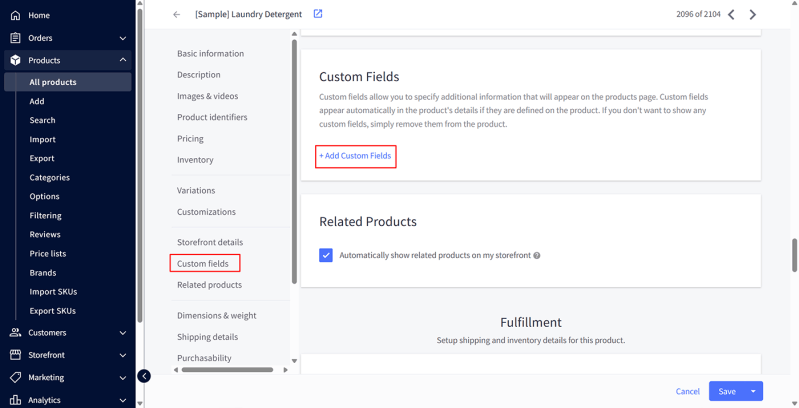
- Scroll down to Custom Fields
- Click Add Custom Field
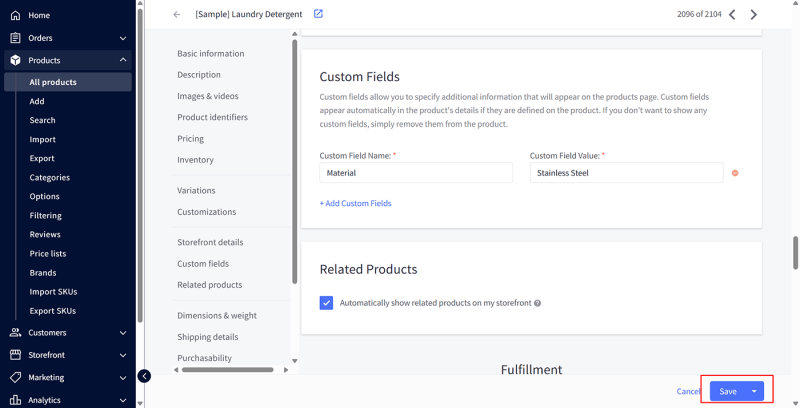
3. Enter Field Details
You'll need two values:
- Field Name → The label (e.g., "Material")
- Field Value → The content (e.g., "Stainless Steel")
Click Add Custom Field if more fields are needed. You can repeat this process to add multiple fields.

4. Save Your Product
Once you've added all fields, click Save or Save & Exit. Your custom fields are now attached to the product.
Where Do Custom Fields Appear?
By default, custom fields may display on the product page depending on your theme.
If they don't show:
- Your theme may not support them out of the box
- You may need to modify your theme files (Stencil)
How to Display Custom Fields on the Product Page
If your theme doesn't automatically render custom fields, you can add them manually. In your product template (Stencil), look for something like:
<dt class="productView-info-name">{{name}}:</dt>
<dd class="productView-info-value">{{{value}}}</dd>
{{/each}}
This will loop through and display all custom fields.
Best Practices for Using Custom Fields
Keep things structured and intentional:
- Use consistent naming (e.g., always "Material," not "Materials" sometimes)
- Avoid overloading products with unnecessary fields
- Think ahead for integrations—custom fields are often used in ERP or data exports
- Group related data logically for better display and usability
When to Use Custom Fields vs Product Options
This is a common point of confusion:
- Custom Fields → Informational only (not selectable by customers)
- Product Options → Used for selections (size, color, etc.)
If the customer needs to choose something, use product options—not custom fields.
Custom Field FAQs
Custom fields are used to store additional product information that doesn't fit into default fields. They're commonly used for specifications, internal data, and integration-related values.
BigCommerce allows up to 200 custom fields per product with a maximum of 255 characters per field.
Custom fields may not appear if your theme doesn't support them by default. In that case, you'll need to update your theme files to render custom fields manually.
No, custom fields are display-only. If you need customers to make selections like size or color, you should use product options instead.
Yes, custom fields are often used to store external IDs, mapping data, or flags that help connect BigCommerce with ERP systems or other platforms.
Custom fields are better for structured, repeatable data like specifications. Product descriptions are better for marketing content and detailed explanations.
Yes, custom fields can be added or updated in bulk using CSV imports, which is helpful for large product catalogs.
Final Thoughts
Custom fields are one of the simplest ways to extend your BigCommerce product data without adding complexity. They're especially powerful when paired with theme customization or backend systems that rely on structured product data. If your store is growing or integrating with other systems, setting up clean, consistent custom fields early will save you time later.
Ready to Scale Beyond Manual Product Management?
As your product data gets more complex, custom fields are often just the beginning. Managing that data across your storefront, operations, and ERP system can quickly become difficult to maintain manually.
Strabo Partners helps businesses connect BigCommerce with Microsoft Dynamics 365 to keep product data accurate, consistent, and easy to manage—without added overhead. Let's simplify how your systems work together.