Conditional Navigation on Screen Load — without breaking Power Apps
April 13, 2026
By: Chad Schadewald
Summary: Power Apps blocks Navigate() inside OnVisible — and for good reason. Here's the clean workaround using a hidden timer that lets you auto-route users based on their security role.
The problem
What you actually want to do
Imagine your app has a main menu screen with a dropdown that routes users to different screens. Some users — based on their security role — only ever have access to a single option. Forcing them to click that one option every time is redundant. Ideally, the app detects this and sends them straight to their destination the moment the screen loads.
The natural instinct is to put a Navigate() call directly inside the screen's OnVisible behavior formula. But Power Apps won't let you do that.
Why Power Apps blocks this
Power Apps deliberately prevents Navigate() from running inside OnVisible as a guardrail against navigation loops — where two screens endlessly bounce users back and forth.
Screen A's OnVisible navigates to Screen B. Screen B's OnVisible navigates back to Screen A. The app enters an unstable state with no way out.

Even if your specific scenario has no loop risk, the platform enforces this restriction universally to prevent unpredictable app states.
The workaround — indirect navigation via a hidden timer
The trick is to break the direct connection between OnVisible and Navigate(). Instead of navigating directly, you use OnVisible to signal intent — setting a variable — and then a hidden Timer control responds to that signal and performs the actual navigation.
This indirection is enough to satisfy Power Apps' restrictions, because Navigate() is no longer running inside OnVisible itself.
Step-by-step implementation
Step 1 — Set a variable in OnVisible
In your screen's OnVisible property, check the user's condition and set a navigation variable accordingly. Do not call Navigate() here.
varUserOption1,
Set(
varNavigationVariable,
true
),
Set(
varNavigationVariable,
false
)
)

Step 2 — Add a hidden Timer control
Insert a Timer control onto the screen. Configure its properties as follows:
| Property | Value | Reason |
|---|---|---|
| Start | varNavigationVariable | Timer activates when the variable is true |
| Duration | 10 | 10ms — fast enough to feel instant, slow enough to decouple from OnVisible |
| AutoStart | false | Prevents the timer from running on its own without the variable being set |
| Repeat | false | Ensures it only fires once per trigger, not on a loop |
| Visible | false | Hides the control from users — it's a background mechanism only |

Step 3 — Navigate in OnTimerEnd
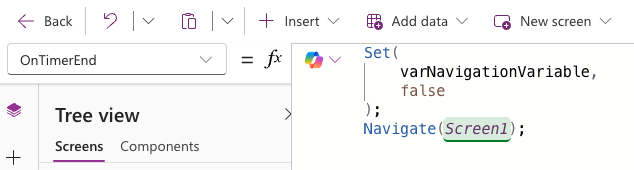
In the timer's OnTimerEnd property, reset the navigation variable and then call Navigate(). Resetting the variable first is important — it prevents the timer from re-triggering if the user returns to this screen later.
Set(varNavigationVariable, false);
// Then navigate to the appropriate screen
Navigate(Screen1)
Always reset varNavigationVariable to false before calling Navigate(). If you navigate first and the variable is still true when the user returns to this screen, the timer will fire again and immediately redirect them, which is likely not what you want.
Why a duration of 10ms?
The timer duration can be anywhere in the range of 1–50ms. The exact value doesn't matter much — the key is that it's non-zero. Any positive duration is enough to break the synchronous chain between OnVisible and the navigation call, which is all Power Apps needs to allow it. Users won't perceive a 10ms delay.
The result
Users with a single available option are automatically routed to their destination the moment they land on the screen — no extra clicks required. Users with multiple options see the normal menu and experience no change. Both paths coexist cleanly in the same screen.
This pattern works for any conditional routing scenario on screen load: role-based redirects, first-time-use flows, feature flag gates, or A/B routing. Anywhere you'd want to say "if this condition is true when the screen opens, go somewhere else" — the hidden timer approach gets you there without fighting the platform.
Final thoughts
Power Apps is a powerful platform, but it has its share of guardrails that aren't always obvious — and working around them cleanly takes experience. The hidden timer pattern is just one example of the kind of institutional knowledge that separates a polished, production-ready app from one that fights its users.
At Strabo, we build and optimize Power Apps solutions for organizations that need them to actually work — not just technically function, but feel seamless to the people using them every day. If your team is running into limitations like this one, or you're not sure your current Power Apps implementation is as efficient as it could be, we'd love to take a look.
Reach out to the Strabo team to talk through your Power Apps environment. Whether you're starting from scratch or untangling an existing build, we'll help you find the right path forward.
